Zenith
Sushi: Zenith entered open beta on July 19, 2026. It is a laid-back modpack focused on survival, exploration, and building. The server is still under active development.
Joining Guide
This guide helps you install the Sushi: Zenith modpack and configure the necessary settings.
Installing the Modpack
First, join the Sushi QQ group: 1045084460
In the group files, find the modpack folder, locate "Zenith", and download the latest version.
Then, install the modpack into your Minecraft launcher. Generally, you can drag the modpack file into your launcher window.
The installation requires an internet connection. If you have trouble downloading game files or mods, try again a few times.
About Launchers
The official Minecraft launcher cannot install third-party modpacks. We recommend using a third-party launcher.
Configuring the Modpack
After installation, go to the modpack's settings, find JVM arguments, and enter:
For specific launcher setting guide, please refer to the launcher's official docs.
Why there's no image guide?
We re sorry but our development team have no experience of using a non-Chinese Minecraft launcher. If you're interested in contributing image guide, please contact us via QQ.
Important Notes
- Make sure to set the JVM parameter in the modpack's version settings, not the global launcher settings. If you put it in the global settings, you won't be able to play other Minecraft versions normally.
- On Windows, the modpack installation path must contain only ASCII characters. If your
.minecraftfolder path contains non-ASCII characters (e.g., your Windows username contains Japanese Kana characters), see the Services section below for help.
This parameter connects your game to the SushiMC update service and keeps your client on the latest version.
Login methods
For safety and compatibility, Sushi: Zenith only allow players to log in through LittleSkin.
If you had bought Minecraft, you can link your LittleSkin account with your Microsoft account and go on.
If you hadn't, you can still use LittleSkin to login without purchasing Minecraft.
Once configured, you can launch the Sushi: Zenith modpack!
Gameplay Guide
A quick overview of common things to know about Sushi: Zenith.
Network Lines
After launching, click Multiplayer and you'll see several network lines:
| Line | Description |
|---|---|
| Direct | Connect directly to our server machine. Usually laggy if you're not in China. |
| Direct-UDP | For testing purpose. |
| NAT | Worth trying. This network line has slightly lower network load to our machines, and usually turns out great in connection quality. |
| NAT-UDP | For testing purpose. |
| EO | Low bandwidth, but accessible across the world. You may try this if you're far away from China. |
Ping
Press TAB in-game to open the player list and see your ping. It may show -1 right after joining — wait a moment for it to update.
Proxy Server Commands
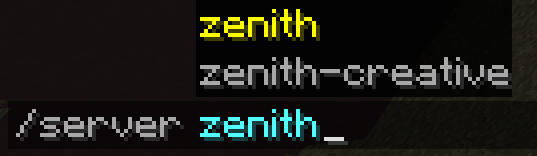
Use /server to switch between sub-servers:
| Server | Purpose |
|---|---|
zenith |
Main survival server — where most players hang out |
zenith-creative |
Creative mode for schematic and testing |
Cross-server Chat
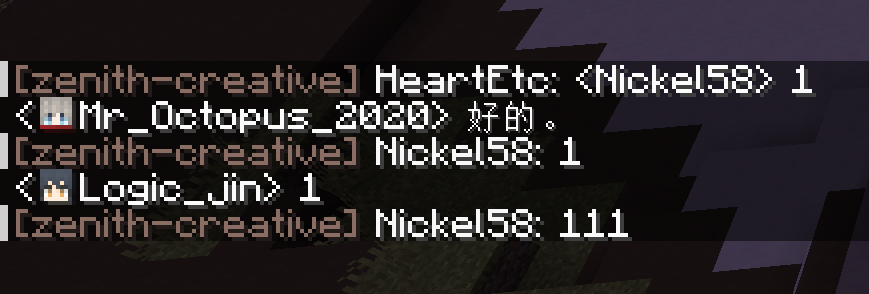
You can see chat from all sub-servers on the SushiMC network. Messages from players on the same server as you appear normally, while messages from other servers are prefixed with the server name before the player name.
Voxy Mod
The Sushi: Zenith modpack comes with the Voxy distance extension mod by default. You can adjust your desired render distance in the video settings.
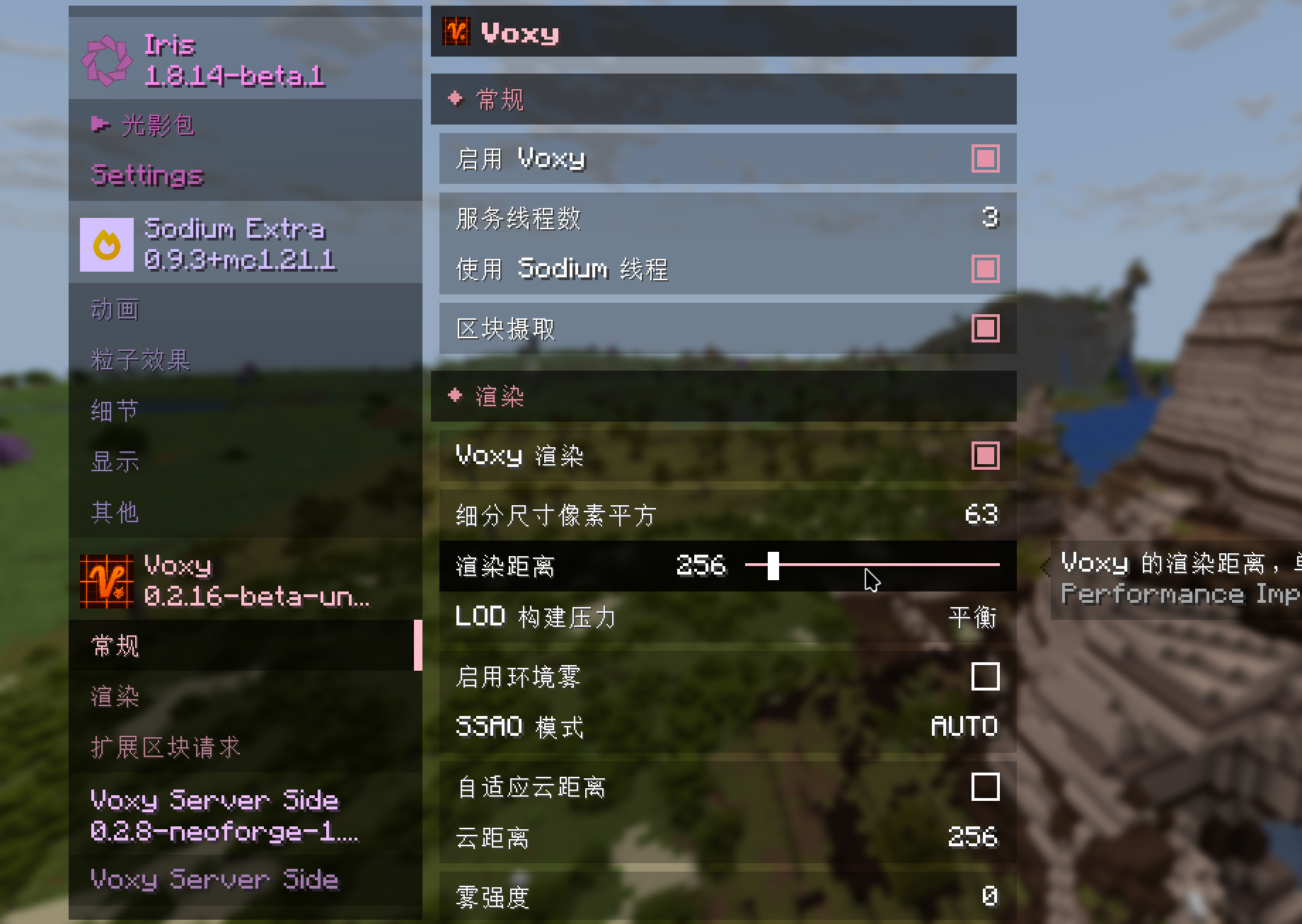
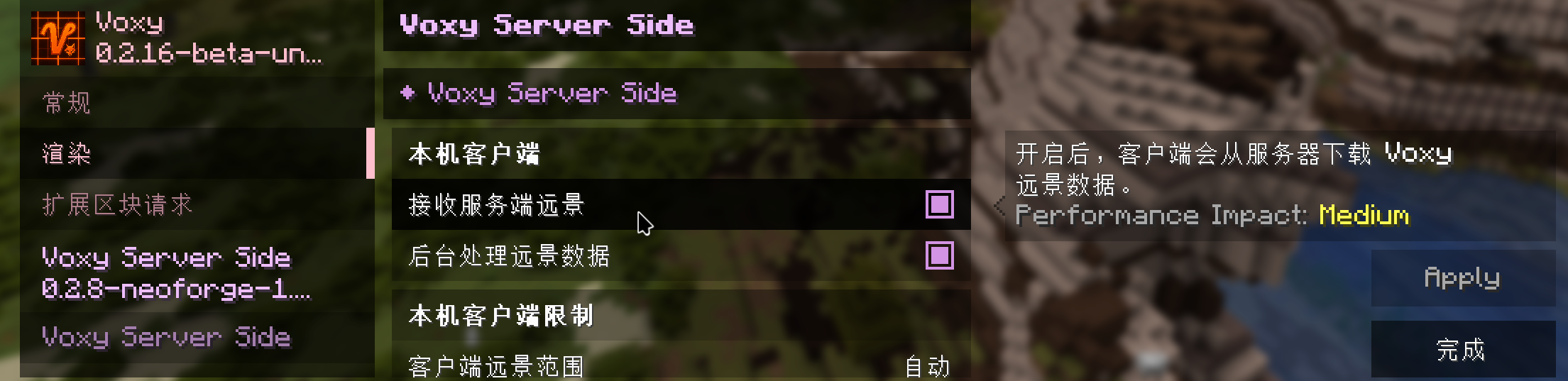
The server provides a maximum render distance of 16 chunks and sends up to 256 chunks of Voxy scenery. You can adjust how much Voxy data you want to receive in the Voxy Server Side mod settings.
Voxy supports shaders on Sushi: Zenith. We recommend Complementary shaders with the Euphoria Patches mod for great performance and visuals.
Voxy Performance
Voxy is well-optimized, but some devices may still struggle. If you experience performance issues, you can disable Enable Voxy and Receive Server-Side Scenery in the video settings.
Advanced Tips
These tips can improve your experience but are entirely optional.
They may require some technical knowledge. Don't worry if you can't follow — you don't need to do any of this to enjoy Sushi: Zenith.
Syncing Xaero Maps Across Lines
If you frequently switch network lines, your Xaero map data will be separate for each line, because the game treats each line as a different server. You can work around this with a bit of effort.
Data Sync (for advanced users)
- Open your version folder and find the
xaerodirectory, containingminimap(minimap) andworld-map(fullscreen map) subdirectories - Keep one line's map folders, delete the others
- Create shortcuts (Windows) or symlinks (Linux/macOS) pointing to the kept folders
All lines will now share the same map data — set it and forget it.
Syncing Voxy Chunk Cache Across Lines
Similar to above, you may notice that after switching lines, your Voxy chunk cache is gone and needs to reload. You can apply the same Data Sync approach to the .voxy directory in your version folder — create shortcuts or symlinks so the chunk cache is shared across lines. The final folder structure might look like this:

Services
Public services available for Sushi: Zenith players.
Auto-Update Service
If you set the JVM parameter as described in the Joining Guide, your client will check for updates automatically on launch. No need to reinstall the modpack for every update.
Update Issues
If you see an error window on launch, something is wrong with the update service. Please ask politely in the QQ group for help.
If your .minecraft path contains non-ASCII characters, you may fail to use update service throuogh JVM arguments. For this, please direct to version folder and run update.exe to update manually.
Other Services
Web map, statistics, monitoring — still under construction.